
Need Answers to Past Papers?
Get accurate answers for KCPE, KCSE, CDACC, KPSEA, KNEC, Edexcel, and more exams. Contact us now for quick help!
Contact Us on WhatsAppPAY ATTENTION: JOIN US ON WHATSAPP TO ACCESS RECENT PASTPAPERS & NOTES
This complete guide provides Mount Kenya University students with essential information on accessing and using their online portal effectively. You’ll discover how to login successfully, register for courses, view academic results, and manage fee payments through the official MKU student portal system.
Mount Kenya University students need reliable access to their online portal for academic services and course management. This comprehensive guide helps Kenyan students navigate the MKU student portal system, covering everything from initial registration to resolving common access problems you might encounter.
Update: Mount Kenya University (MKU) updated its student management system to enhance speed, security, and accessibility. All students—KUCCPS, SSP, ODEL, and postgraduate—should now use the new MKU Student Portal link below for registration, timetables, fee statements, and academic services.
What is the MKU Student Portal?
The Mount Kenya University (MKU) Student Portal is a secure online system that provides students with access to academic records, course registration, fee statements, exam results, and official announcements. It is used by all MKU campuses, including Thika Main Campus, Mombasa, Nairobi, Nakuru, Eldoret, ODEL, and Kigali Campus.
The portal allows students to manage everything from registration to graduation without visiting campus physically.
 Services Available on the Portal
 Services Available on the Portal
- Course Registration: Register units for the semester and drop/add courses where applicable.
- Examination Results: View semester results, transcripts, and exam cards.
- Fee Balance & Statements: Check fee balance, download statements, and verify posted payments.
- Timetables: Access class, CAT, and exam timetables.
- E-Learning Access: Connect to ODEL/LMIS for online learning content.
- Student Profile: Update personal details, contacts, and academic information.
- Hostel Booking: Apply and pay for on-campus accommodation.
- Clearance & Graduation: Track clearance progress and graduation status.
- Downloads: Access admission letters, fee structures, program requirements, and academic policies.
How to Register for the MKU Student Portal (First-Time Users)
- Open the official portal: https://studentportal.mku.ac.ke/.
- Click Create Account / Register.
- Enter your Admission Number (e.g., DS2023/12345).
- Provide a valid email address and phone number.
- Create a secure password (8–12 characters).
- Check your email/SMS for verification (if required) and confirm your account.
Tip: Ensure your admission number has the correct format, including forward slashes and year codes.
How to Login to the MKU Student Portal
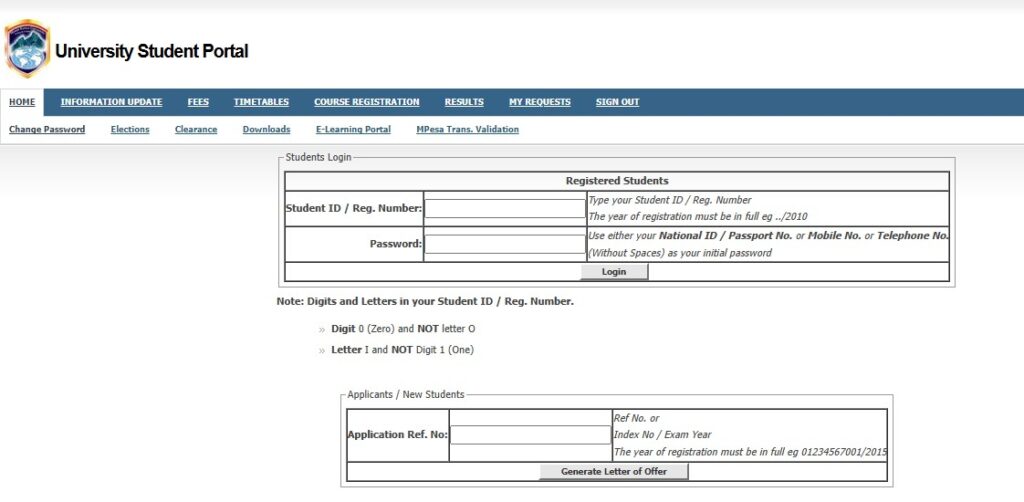
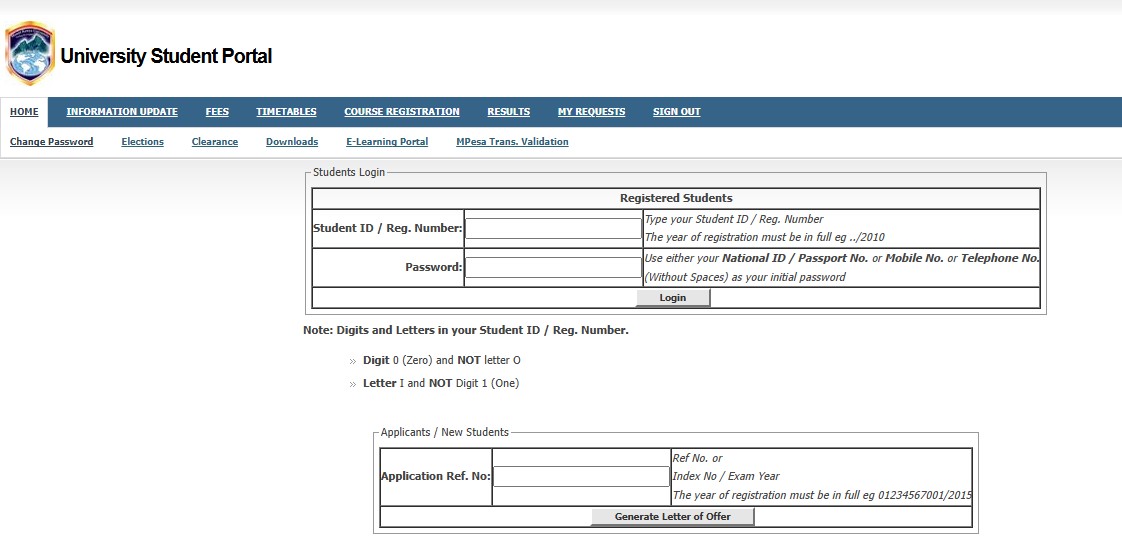
- Visit the portal: https://studentportal.mku.ac.ke/.
- Enter your Admission Number and Password.
- Click Login to access your dashboard.
Once logged in, you can check results, register courses, update your profile, and manage academic activities.
Forgot Password or Reset Portal Account
- On the portal homepage, click Forgot Password?
- Enter your Admission Number and registered email/phone.
- Follow the link or OTP sent to reset your password.
If you lost access to your email/number, visit the MKU ICT office with your student ID for help.
Common Login Issues & How to Fix Them
- Wrong password: Use the reset option to generate a new one.
- Account not found: Confirm your admission number format.
- Portal not loading: Clear your browser cache or use incognito mode.
- Fee payments not reflecting: Allow 30–60 minutes for M-Pesa/bank updates.
- Blocked account: Contact ICT or your department for reactivation.
Important Links
- MKU Student Portal: https://studentportal.mku.ac.ke/
- MKU Main Website: https://www.mku.ac.ke/
- E-Learning Portal (LMIS): https://elearning.mku.ac.ke/
- Fee Payment (M-Pesa Paybill): Business Number 270988
Reminder: Always use the official MKU Student Portal link above to avoid phishing or fake portals.
MKU Student Portal – Frequently Asked Questions
1) Who can use the MKU student portal?
All MKU students—new, continuing, distance learning, and postgraduate—use the portal for academic activities.
2) How do I know my admission number?
It appears on your admission letter. You can also retrieve it from your department or Registrar’s office.
3) Why can’t I see my results?
Your department may not have uploaded them yet, or you may have pending fees. Confirm on your dashboard.
4) How do I get my fee balance?
Open the Finance section of the portal to view updated fee statements and payment history.
5) Can I access the portal from my phone?
Yes. The portal works on mobile browsers (Chrome, Opera, Safari) and desktops.
Frequently Asked Questions
Can’t find what you’re looking for? Contact us